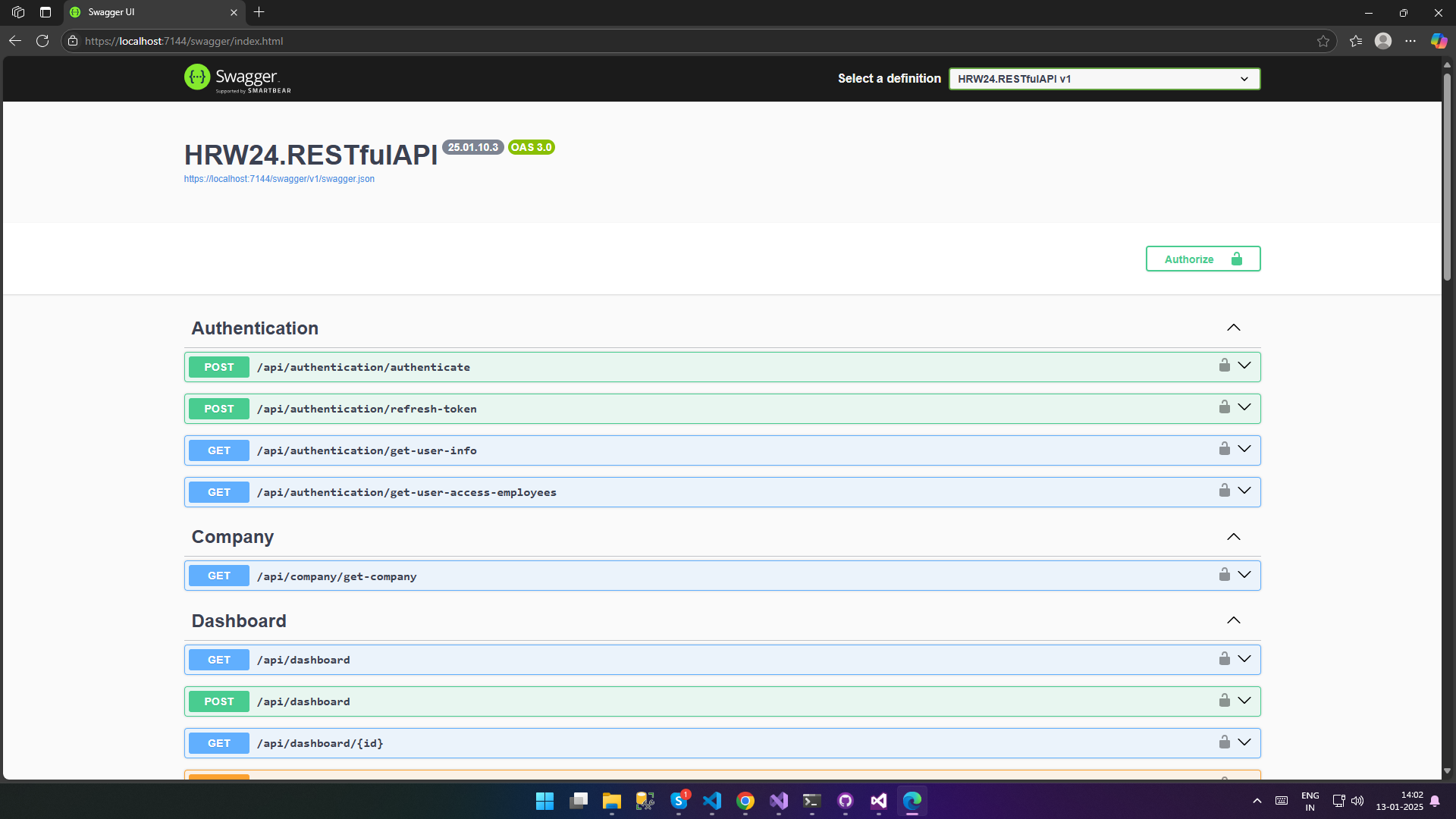
Run HRW24RestfulAPI
The steps for setup HRW24RestfulAPI
-
Open the folder, to which the projected files checked out.
](../../images/HRW24RESTfulAPI_1.png)
-
Open the solution file in Visual Studio 2022
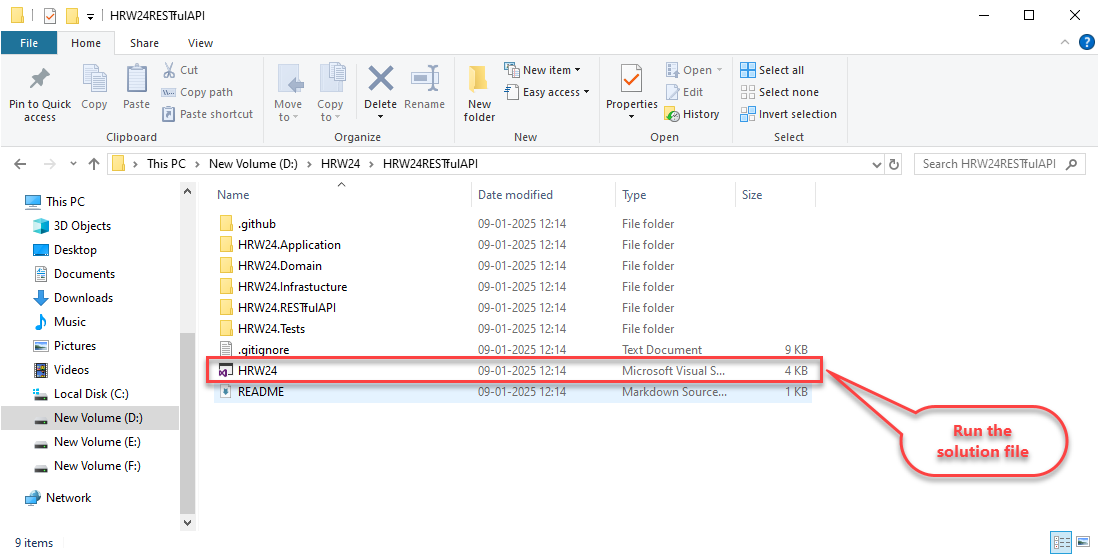
-
Before proceeding, restore the database on which the preceding work is to be done. (use Microsoft SQL Server Management Studio for doing this)
-
Do the necessery query executions related with table updations. The queries to be executed and its related details are given below:
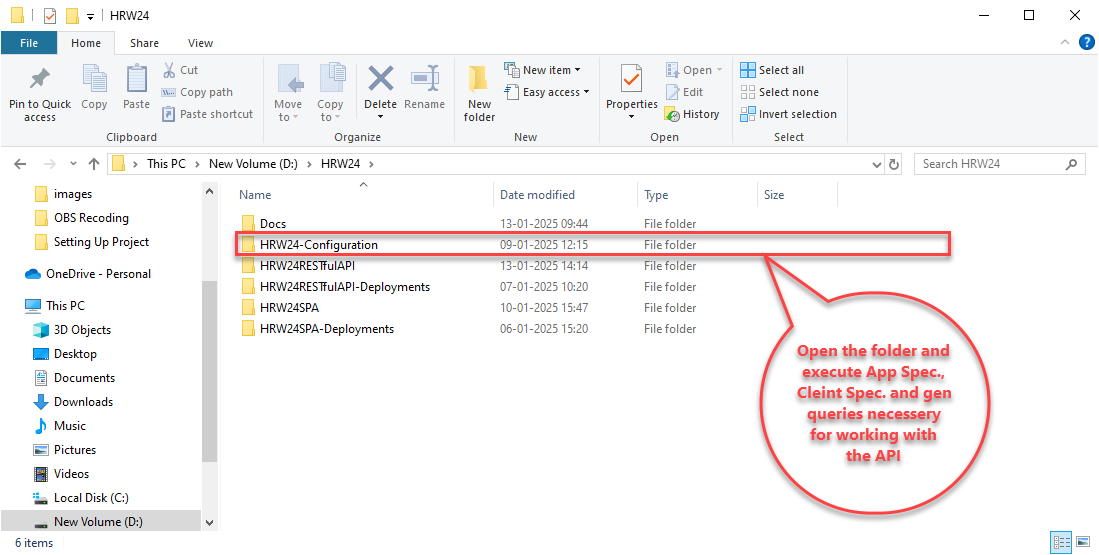
4.1. Open the HRW24-Configuration folder where important queries for API related works are given.
4.2. Execute quries from both Application-Specific Stored Procedures, Client-Specific Stored Procedures folders. Also execute general quries given in the file HRW24DBUpdates.
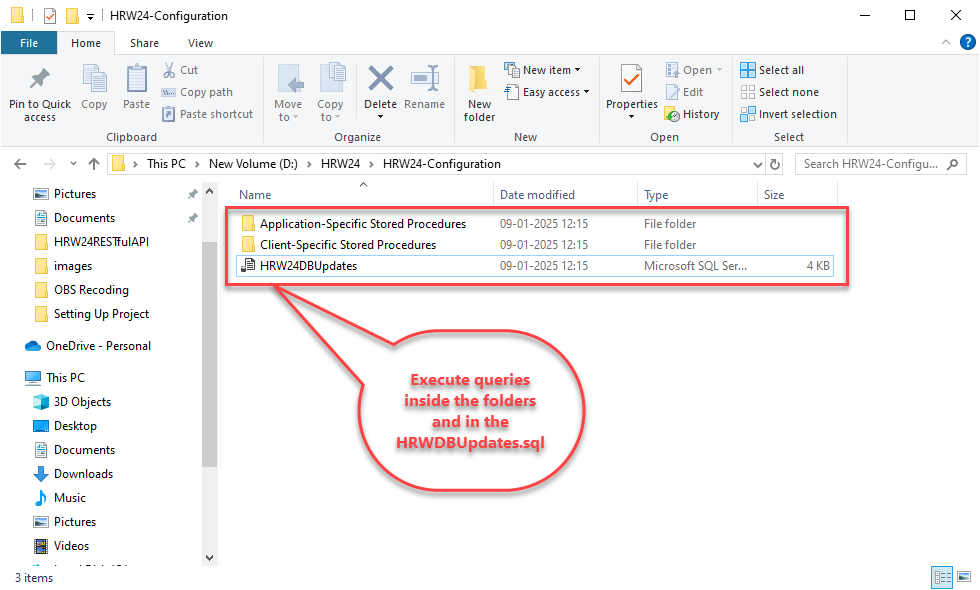
-
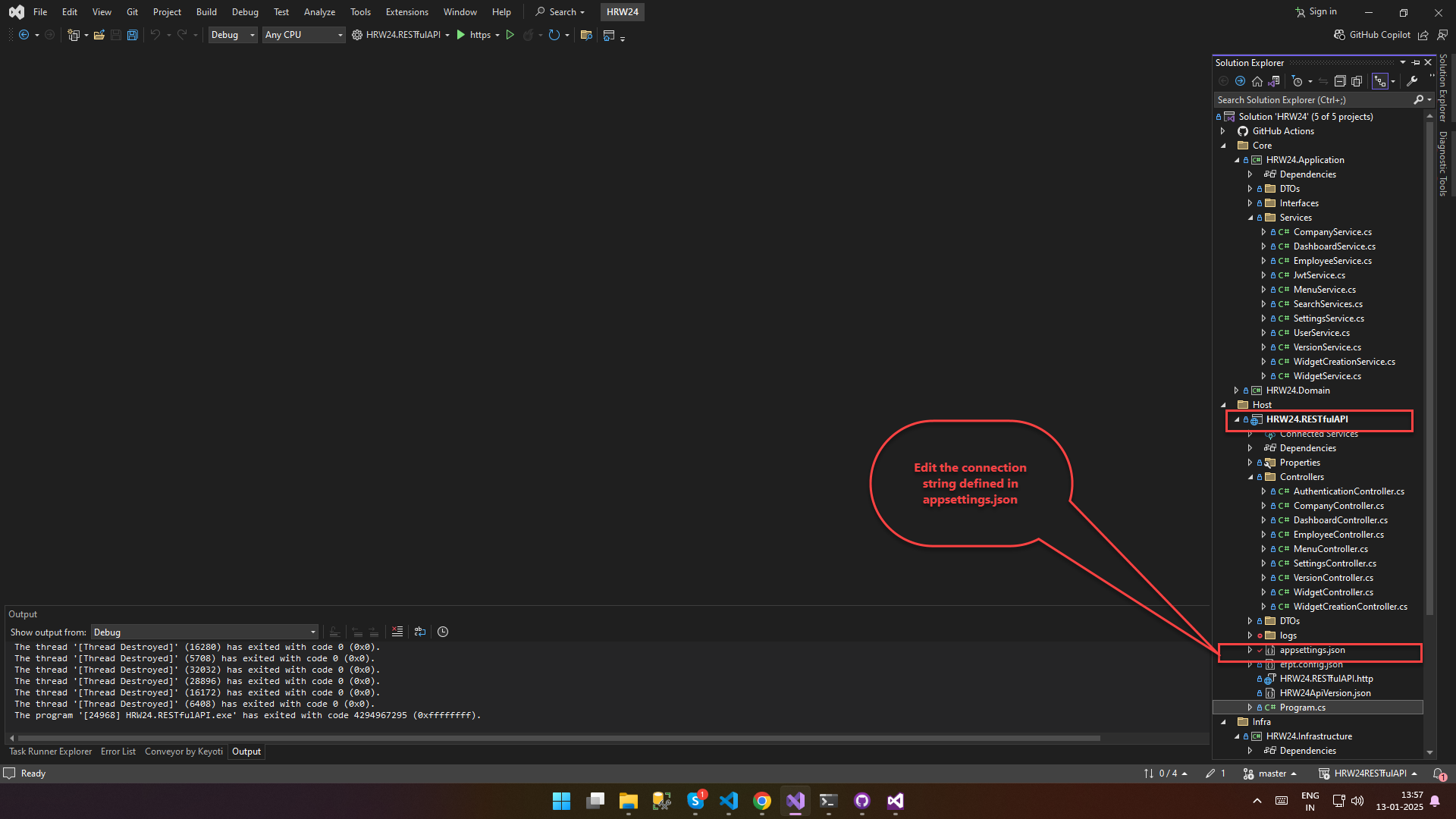
Edit the connection string given in configuration file appsettings.json:
5.1 Open the appsettings.json from the solution explorer, find it under
5.2 Find the connection string
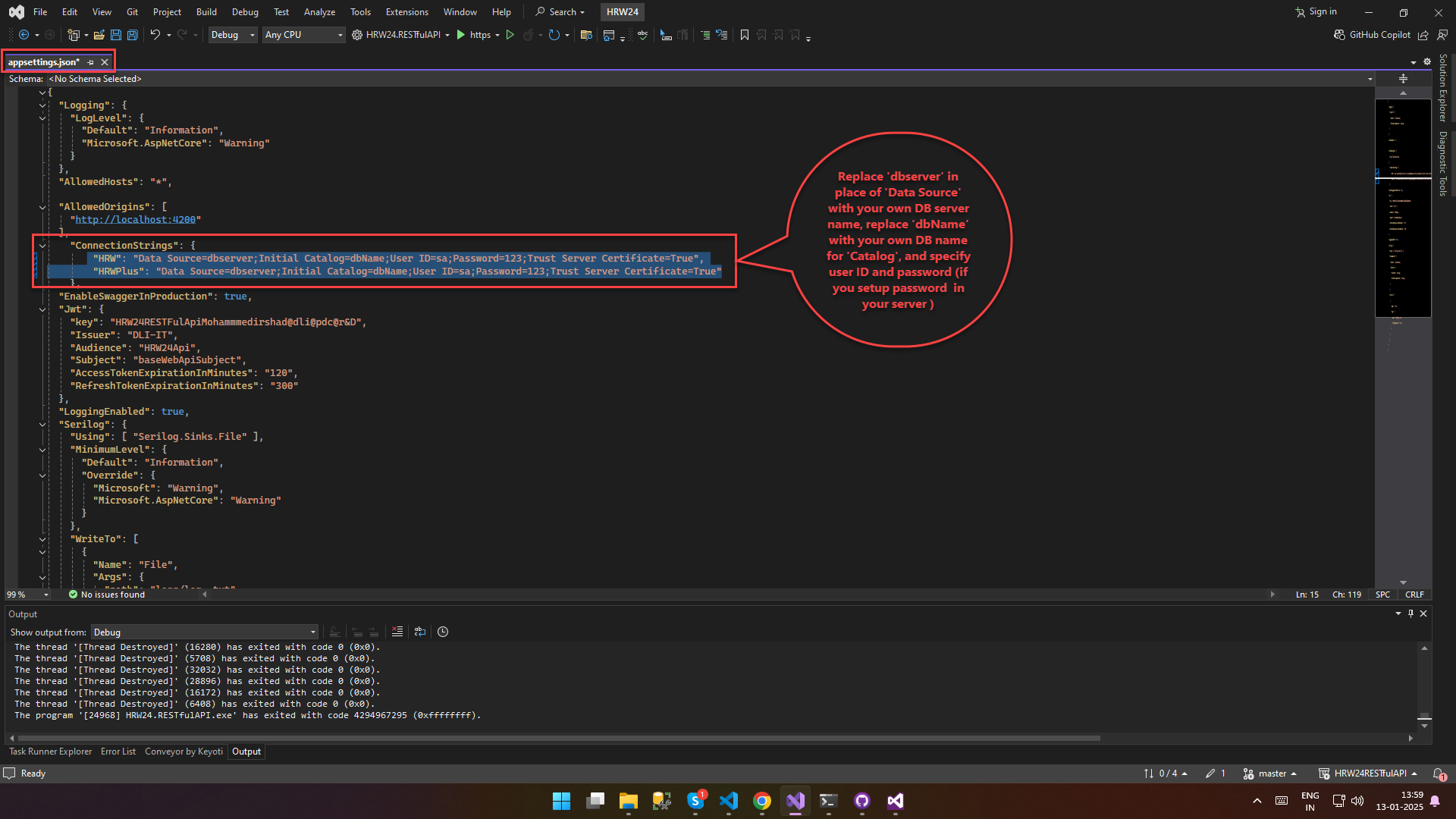
5.3 Edit connection string by changing details given below with your own:
-
Data Source: DB Server Name
-
Catalog : DB Name
-
User ID : Your user id
-
Password : The password that setup for your DB Server
5.4 Save the Configuration
-
-
Click on the https button to Run the project

-
The screen that shown below will open up.