Dashboard Viewer
On this page, users can view the dashboards they have created and edit them on the edit page, which is the same as the one in the Dashboard Configuration page. The features of this page are explained below.
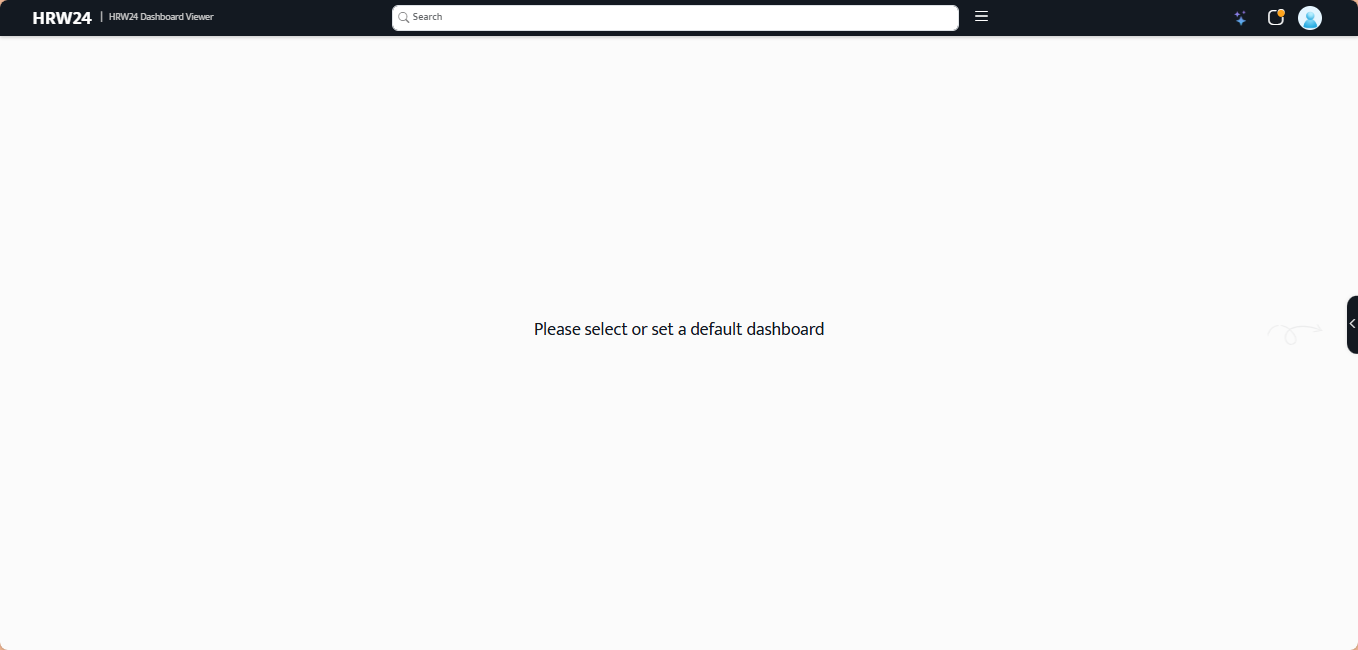
Dashboard Viewer Page
How to open Dashboard Viewer :
Open the Dashboard Viewer page by the following way:
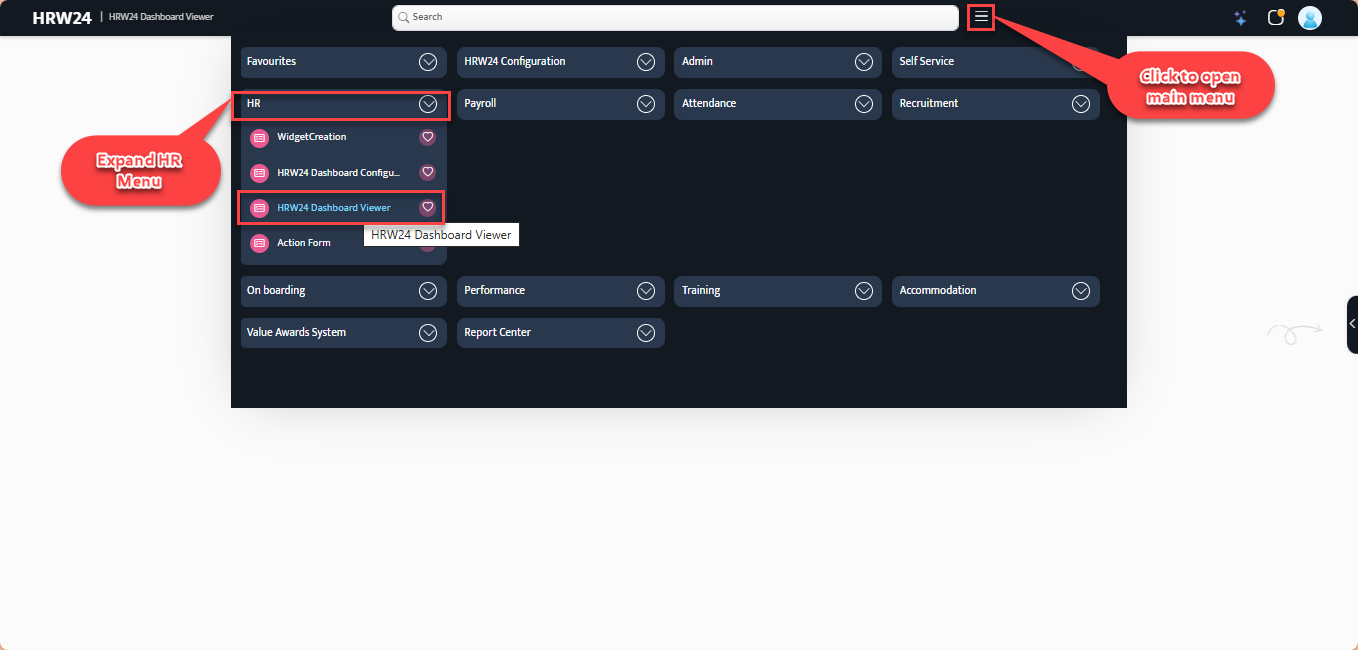
1. Default Dashboard
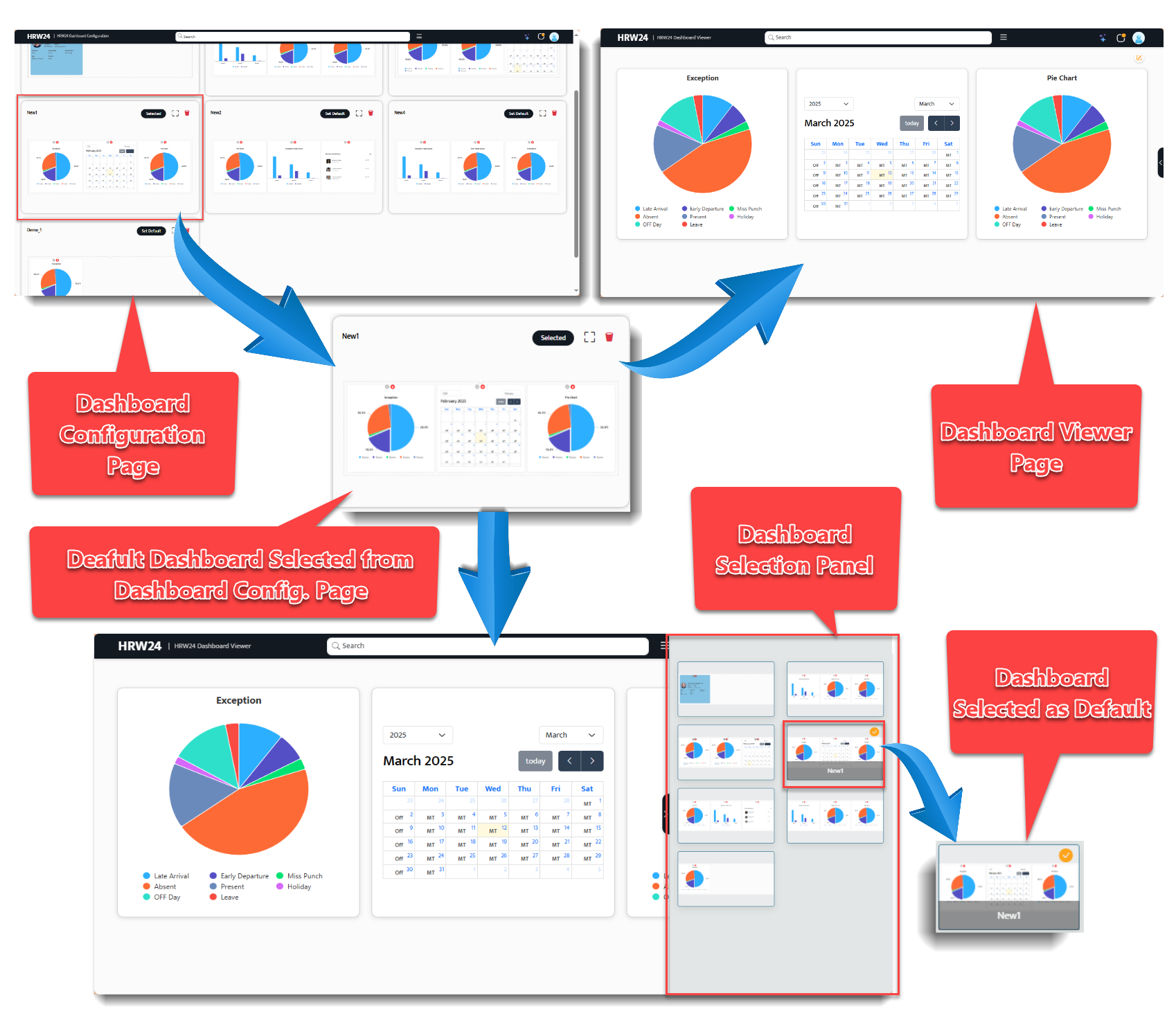
The Dashboard Configuration page includes an option to set any dashboard as the default page, which will be displayed when the Dashboard Viewer page opens. It is very simple to setup any dashboard as default page and can done from configuration page. That is mentioned below:
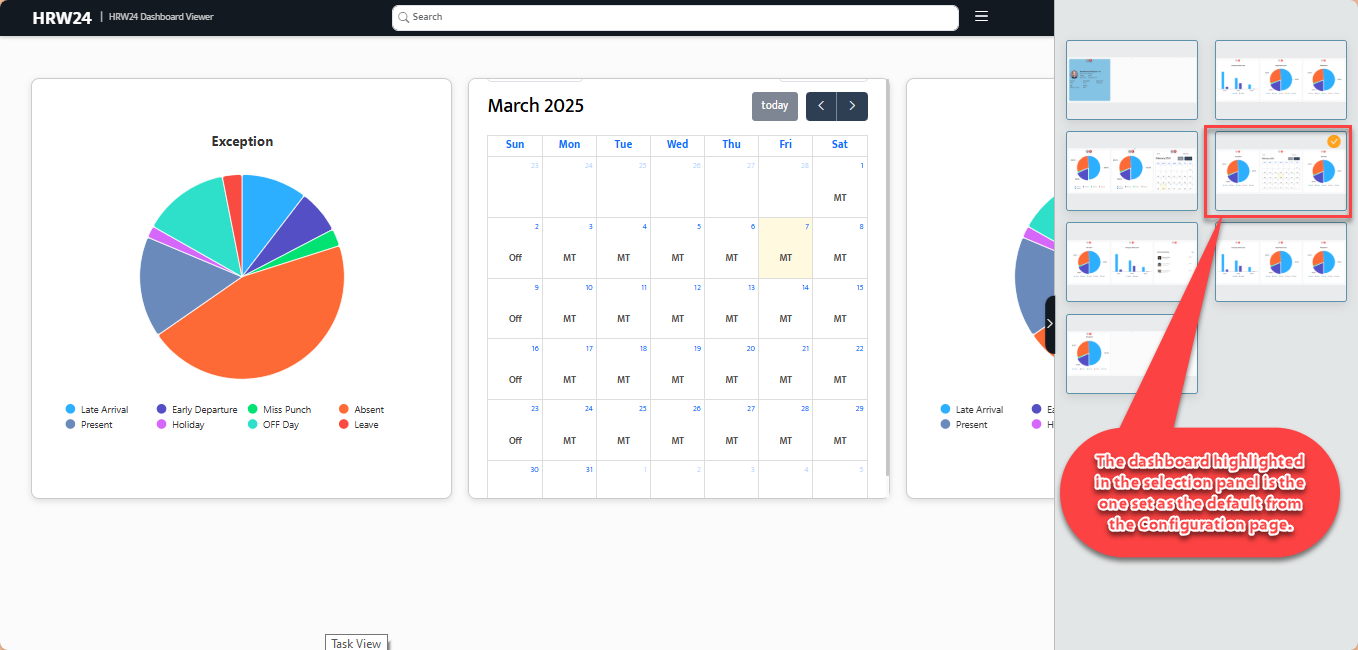
On the Dashboard Viewer page, the displayed dashboard is the one set as default in the Configuration page.
1.1. Open Configuration page from HR Portal Menu.
1.2. There is a Set Default option with every Dashboard cards shown in the page. Click on it to make the corresponding Dashboard as a default dashboard in Dashboard Viewer page. Once you selected a Dashboard as default, then the Set Default button inside the corresponding card will change as Selected.
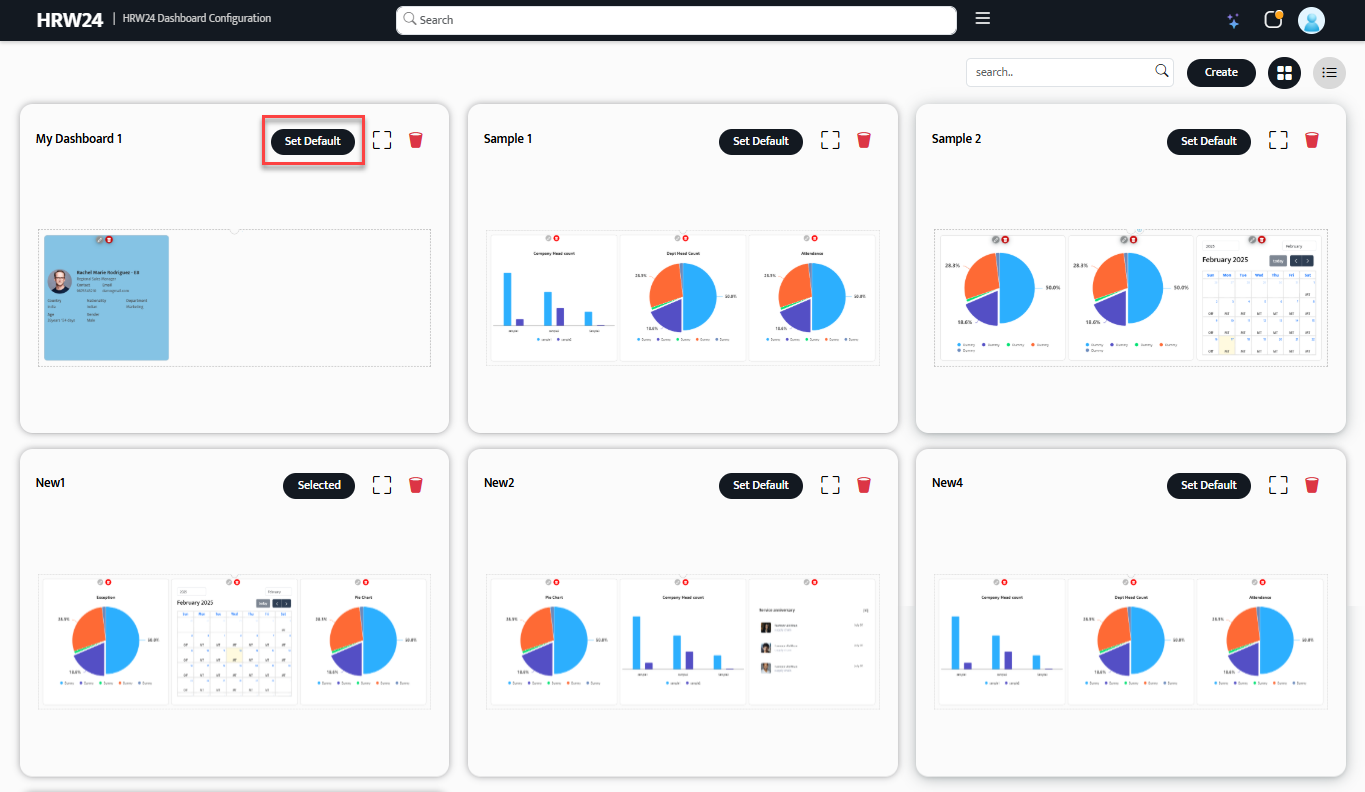
1.3. The Dashboard which is set as default will be highlighted in the Dashboards side panel in Dashboard Viewer(which will explained in next section.)
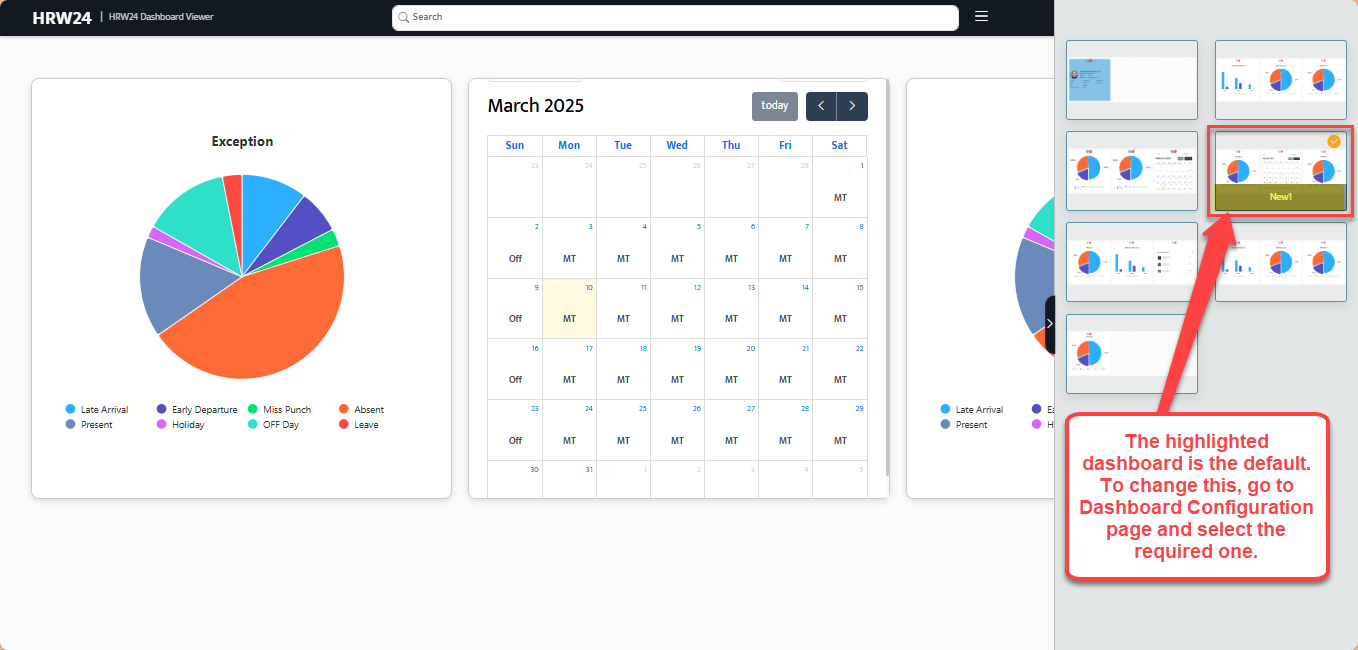
In the Dashboards Selection panel, the default dashboard is highlighted.
Note
You can set any Dashboard as default or change current default to any other dashboard by simply clicking on the respective Dashboard card's Set Default button.
Next time when you opens the Dashboard viewer you will see the Dashboard which you set as the dashboard.
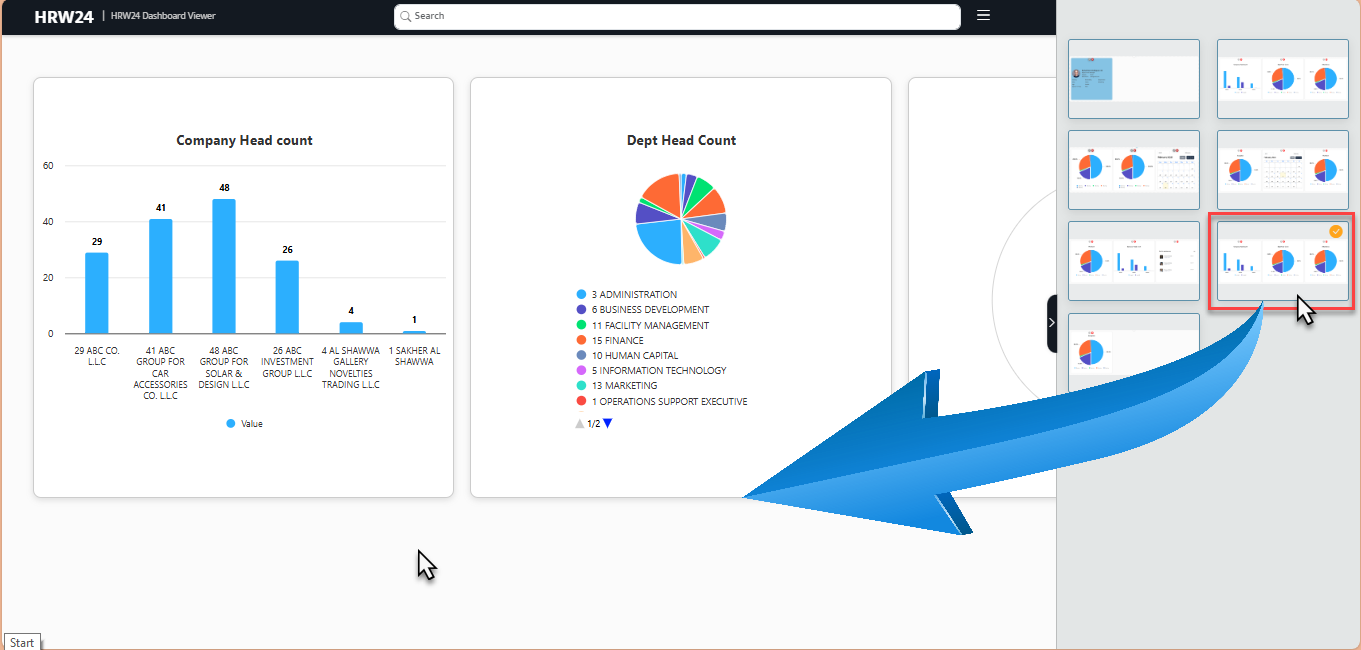
2. Dashboards Selection Panel
This option allows the user to select a dashboard to view or edit as needed. If no dashboard is set as the default, a message appears in the center of the Dashboard Viewer page, prompting the user to select or set a default dashboard from the panel or the Configuration page. A dashboard can be selected from the panel for viewing or editing based on the user's requirement. The selection/side panel needs to be slid out using the button located at the right edge of the page. To help identify this button, a blinking curved arrow appears next to the message (only on a blank screen/page without a default dashboard).
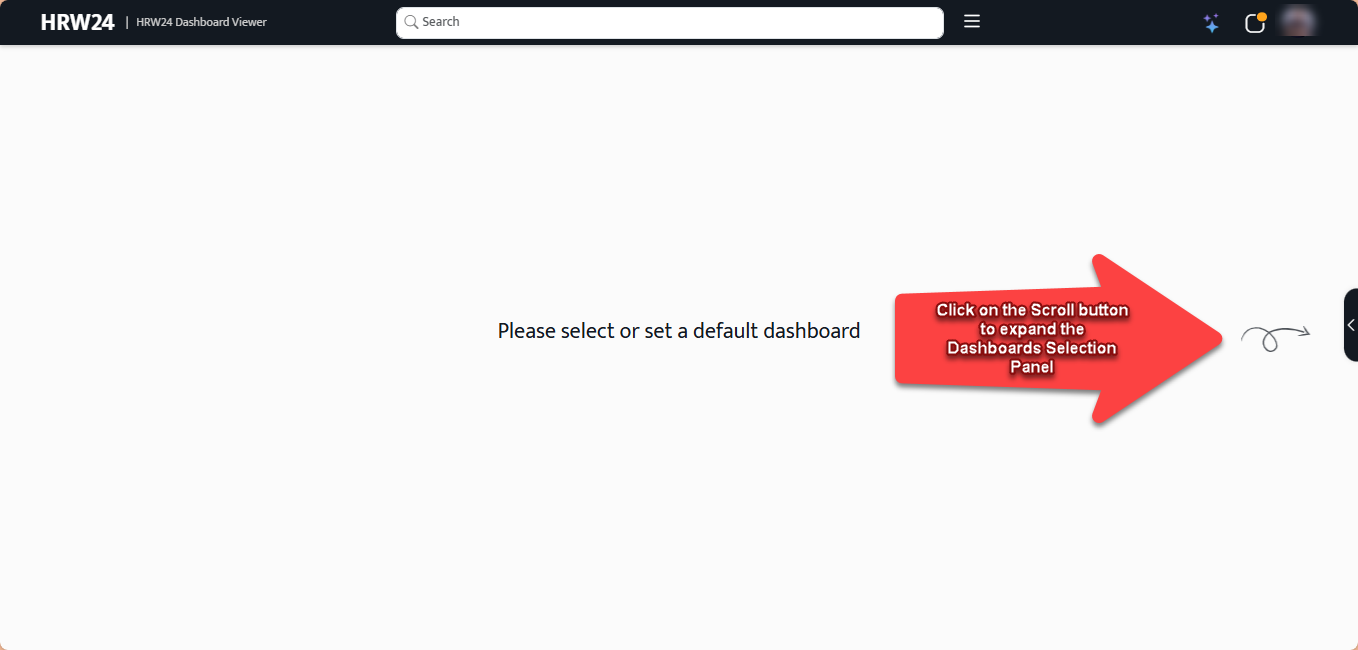
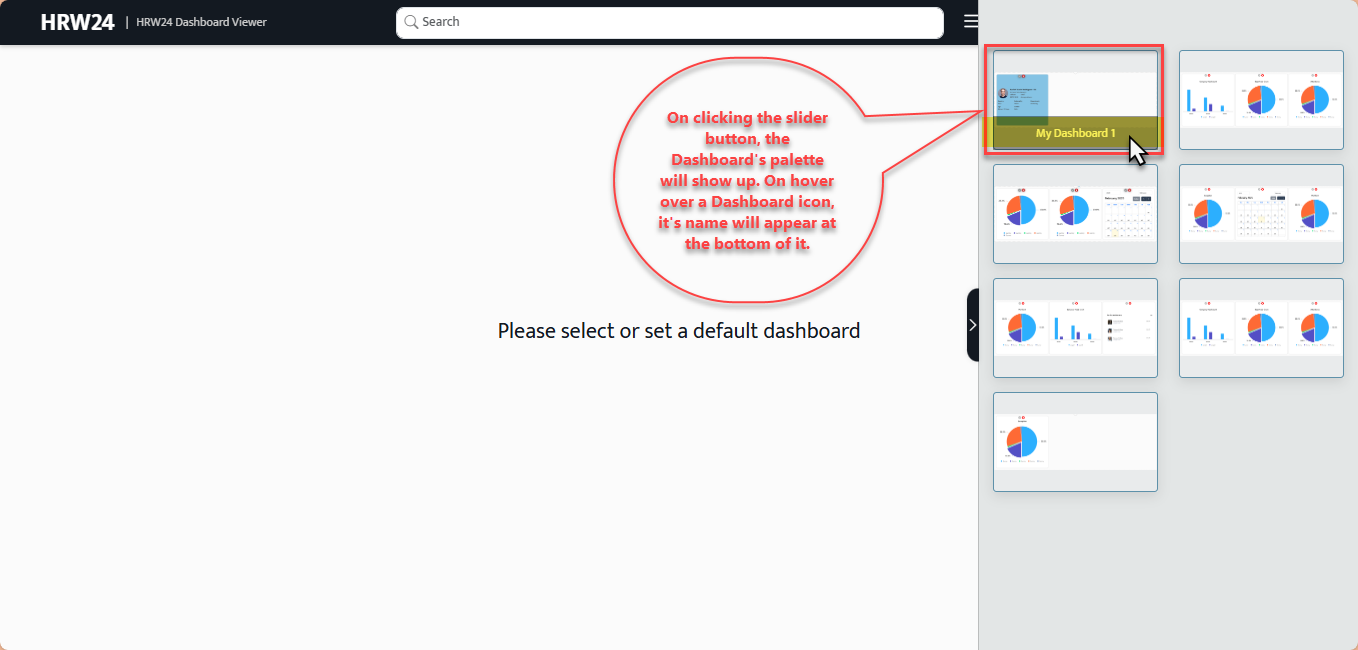
Features of Dashboards Selection Panel
- Click any dashboard thumbnail to open it on the page and edit it if needed.
- This panel will display all the dashboards you have created so far.
- If any dashboard is set as default it will show with a tick mark in it's thumbnail or if any dashboard already selected from the panel also shown with tick mark.
- Only one dashboard can be viewed at a time.
- The name of the dashboard will be displayed when hovering over the dashboard thumbnail.
Edit the Dashboard in Viewer
If you select a dashboard in the Dashboard Viewer, an edit option will be available. You can access it by clicking the button located at the top right of the dashboard.
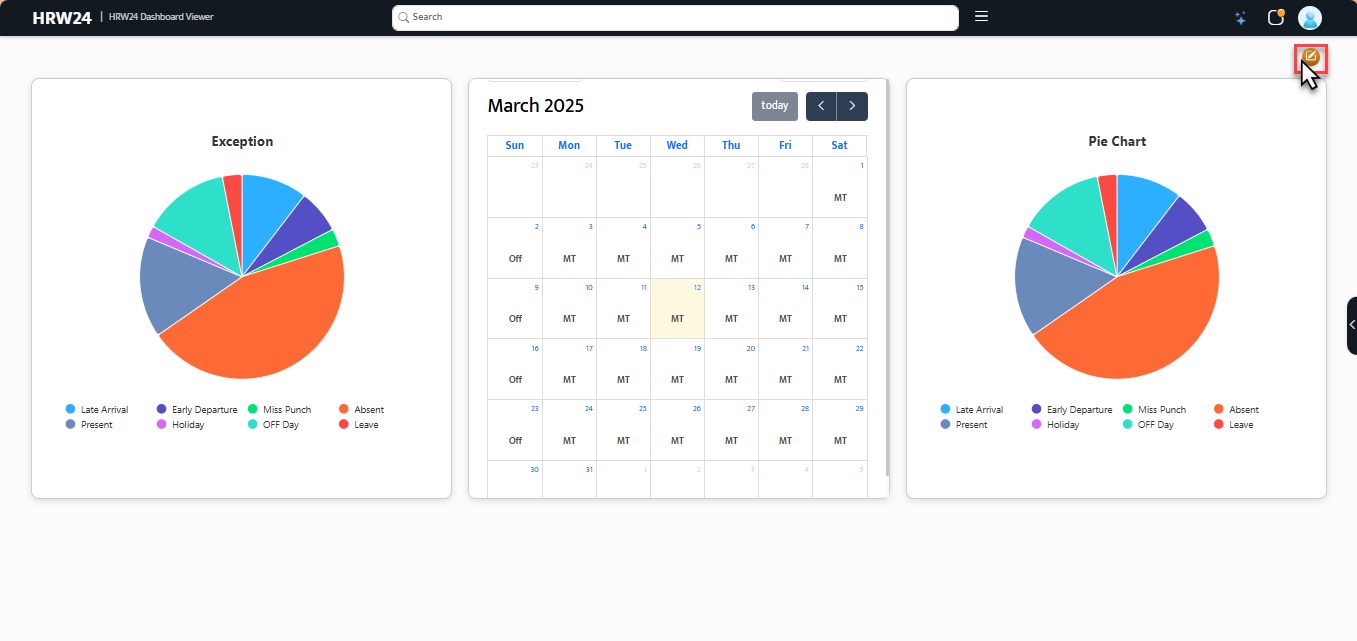
Below are the steps for editing dashboards:
2.1. Open any Dashboard by clicking on its thumbnail inside the selection panel.
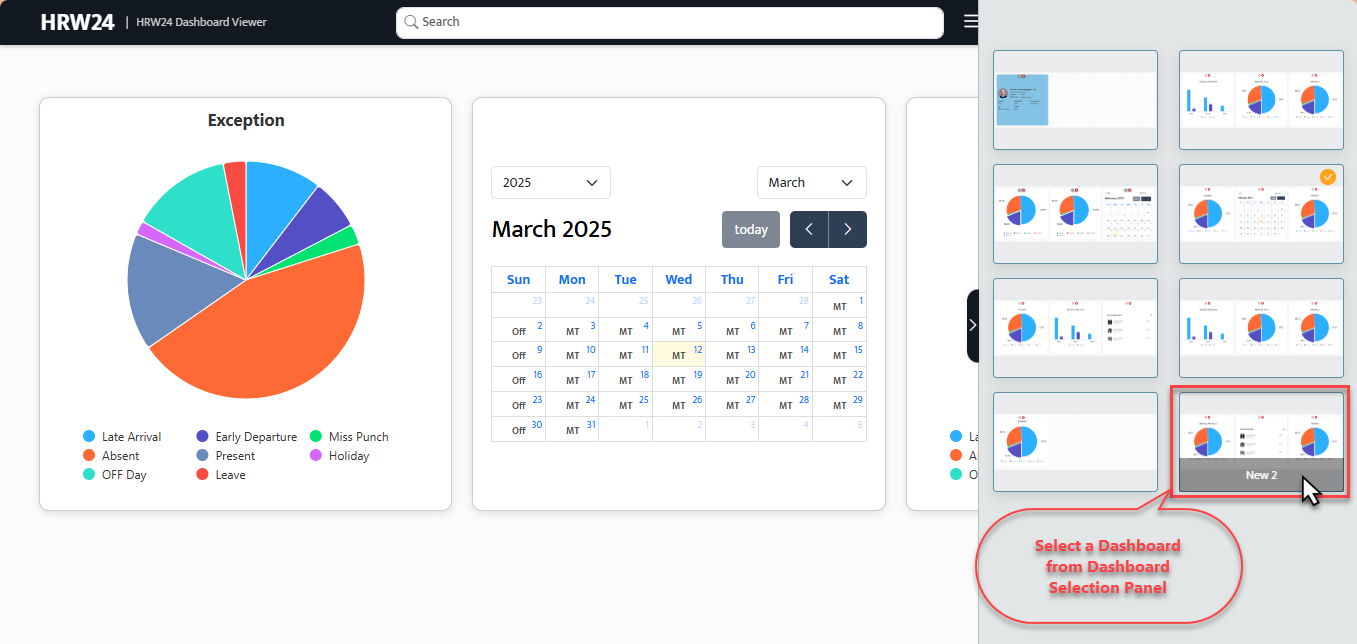
2.2. Click on the Edit button  on the top right of the dashboard.
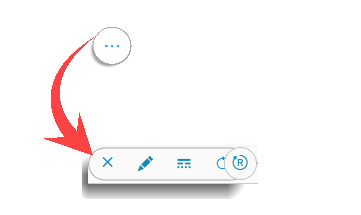
2.3. The Dashboard Edit page will then open, which is similar to the edit page available in the Configuration page, except the case of a Reset option. An addition to the other configuration page edit options.
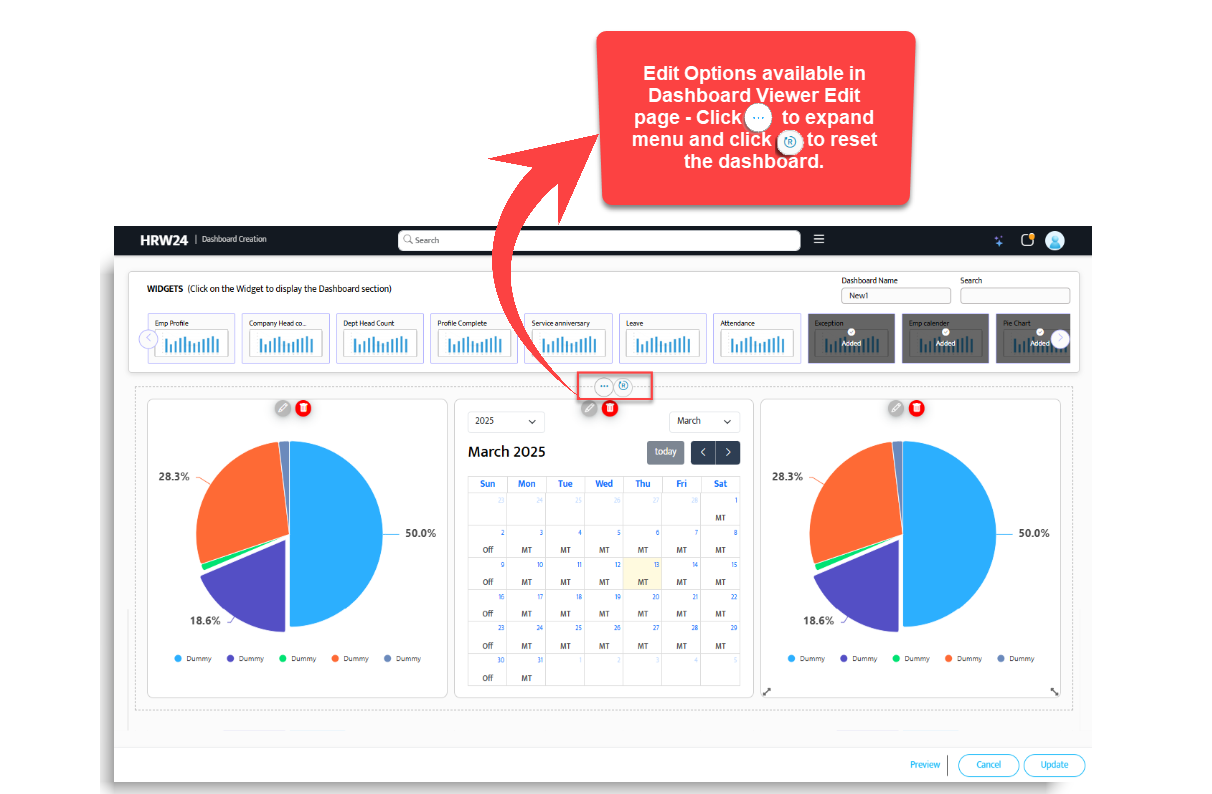
- The normal edit options, which are the same as those on the Configuration page are Edit, Auto and Clear All.
Click the link below to know more about the usage of these edit options:
 Click here to view the basic steps to edit and modify the widget and dashboard layouts
- The Reset button in the Edit page of Dashboard Viewer is used to reset all the changes back to its previous condition.
- Editing the widget's or dashboard's background color, border, etc., follows the same process as mentioned on the Layout Settings - Steps page (the page that opens when following the above link).