Widgets Customization & Dashboard Features
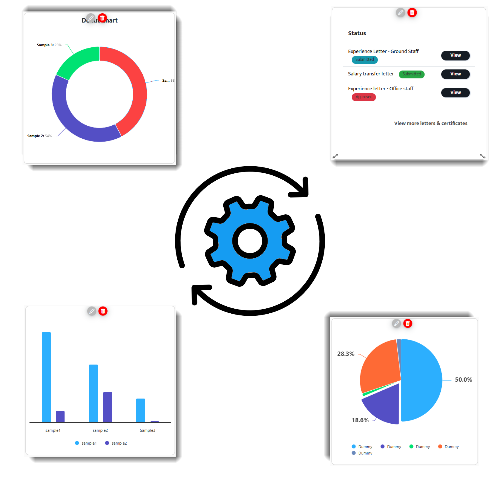
The new portal has the options that allows users to customize the appearance of dashboard widgets. This includes options to change the background color, set borders, and personalize the overall look and feel of widgets.
Note
Steps to create a new dashboard - with and without widgets are already mentioned in the Dashboard Creation section. Here are the additional features that enables users to customize their Dashboards are given below:
To add widgets to an empty dashboard
1.1. Click the menu icon at the top left corner of the header part.
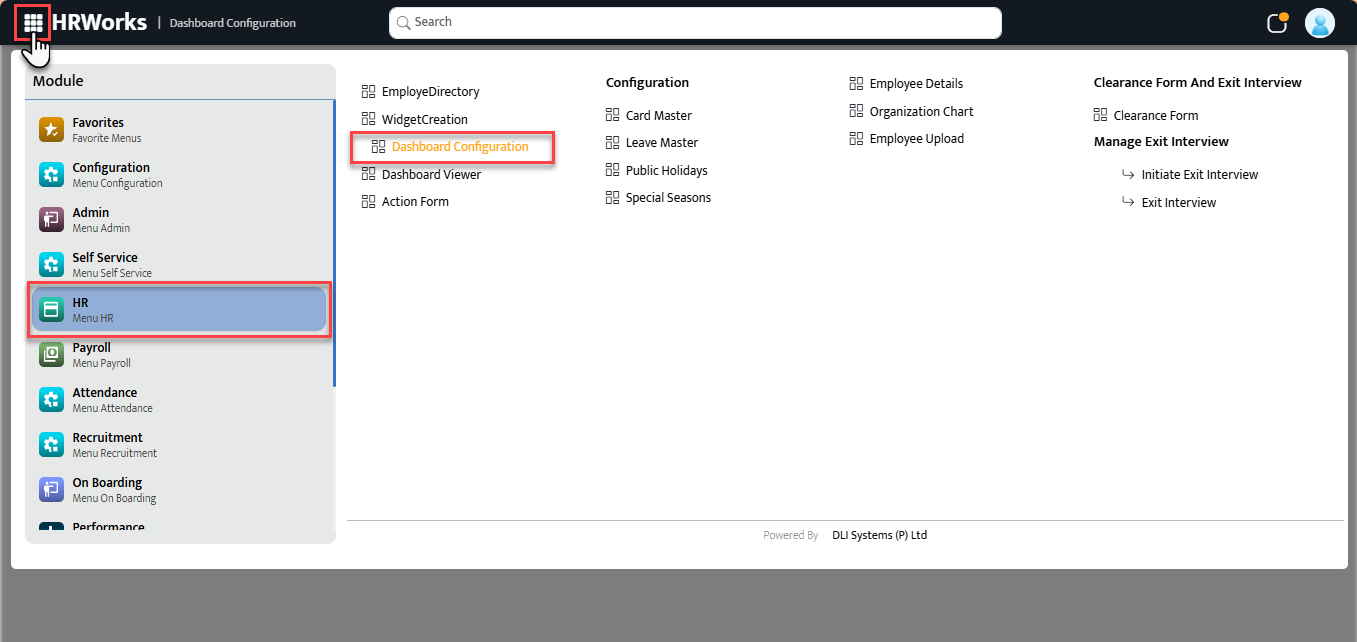 1.2. Do the steps 1 to 6 as mentioned in Dashboard Creation section
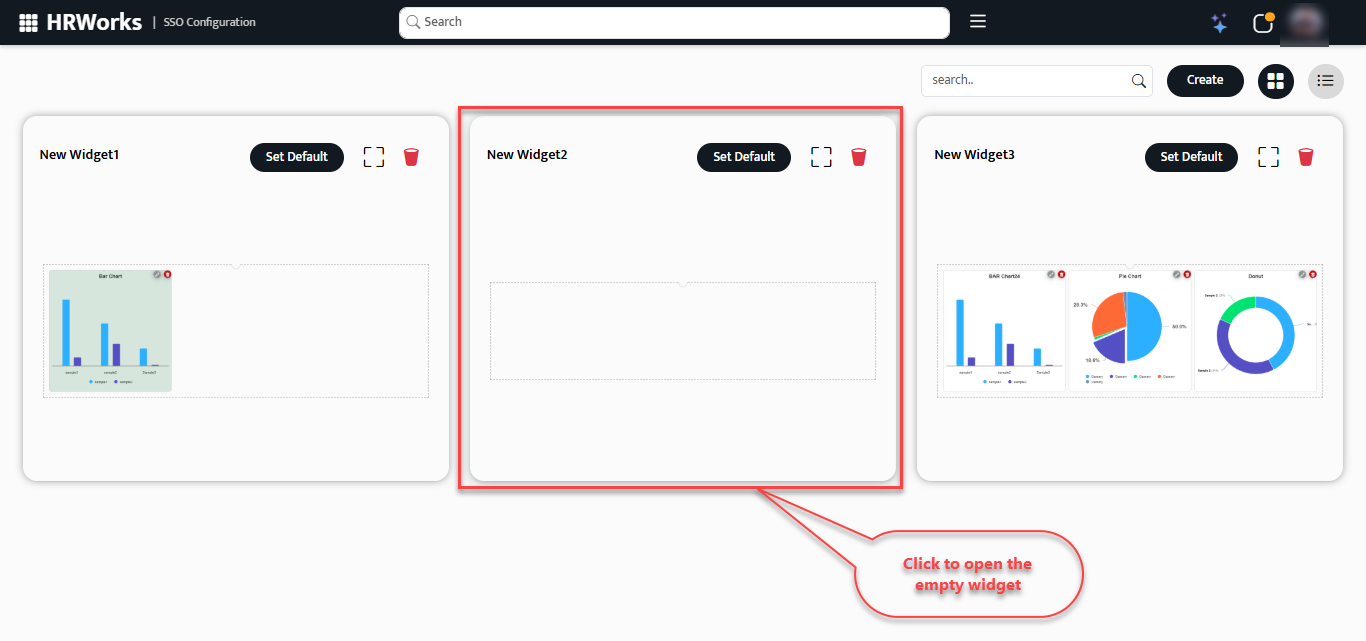 1.3. Click on the newly created dashboard, then select the required widgets to add from the widget section. You can also delete any already added widgets, if needed.
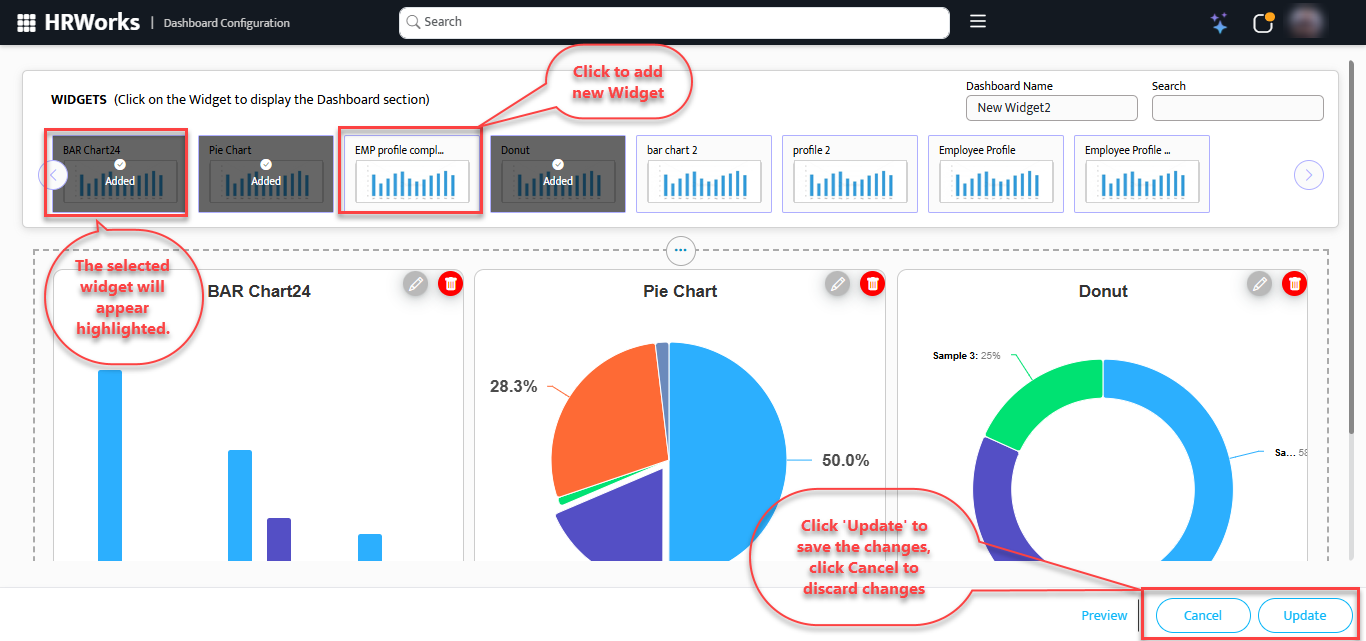 1.4. Click the Update button to save the recent changes.
1.5. Click the Preview button to view the updated Dashboard.
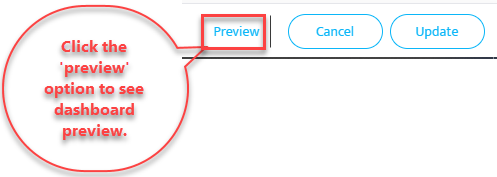
1.6. Click on Go to Edit Mode button to return back to edit page.
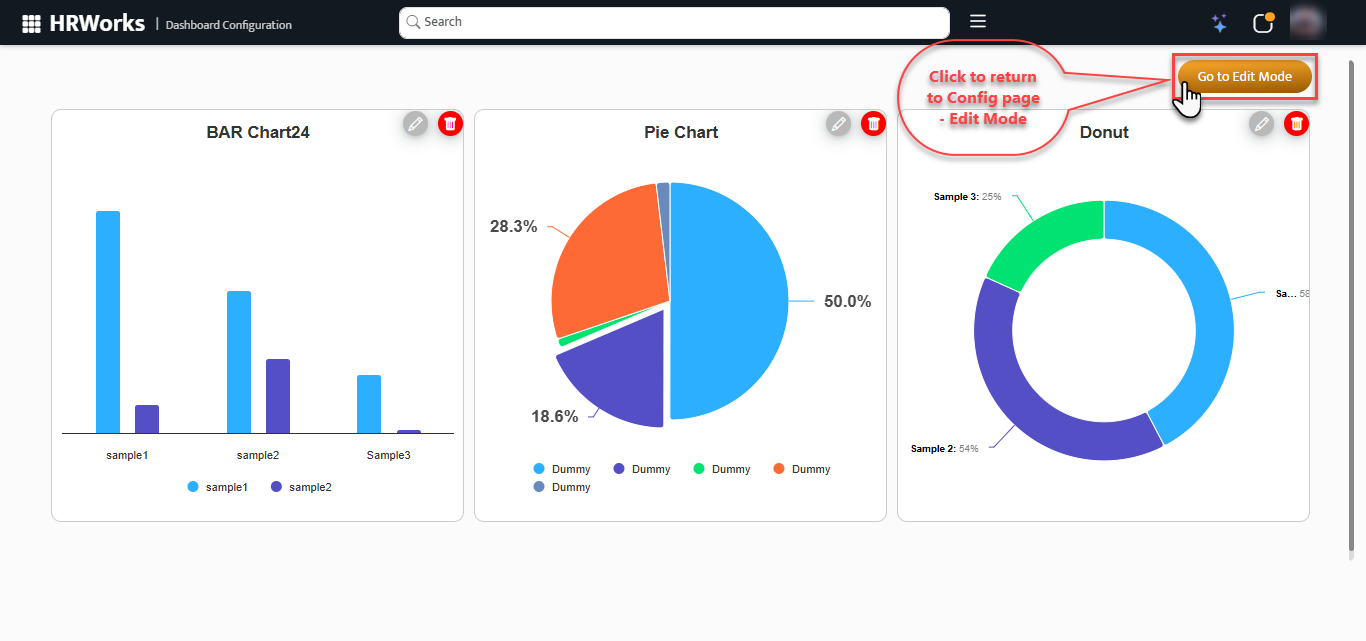
 Click here to view the basic steps to edit and modify the widget and dashboard layouts
Following part will describe each Dashboard / Widget features in detail:
Customizable Dashboards
-
Your Own Dashboard
Create Dashboards with separate name of your own name.

-
Widgets
One of the important parts in Widget creation page has the following features:
- Widget Palette: You can choose your desired widget style by selecting one

- Widget Highlighting: The Widget Palette thumbnail for the selected widget will be highlighted and marked as Added, making it easier for users to identify the widgets they have added.
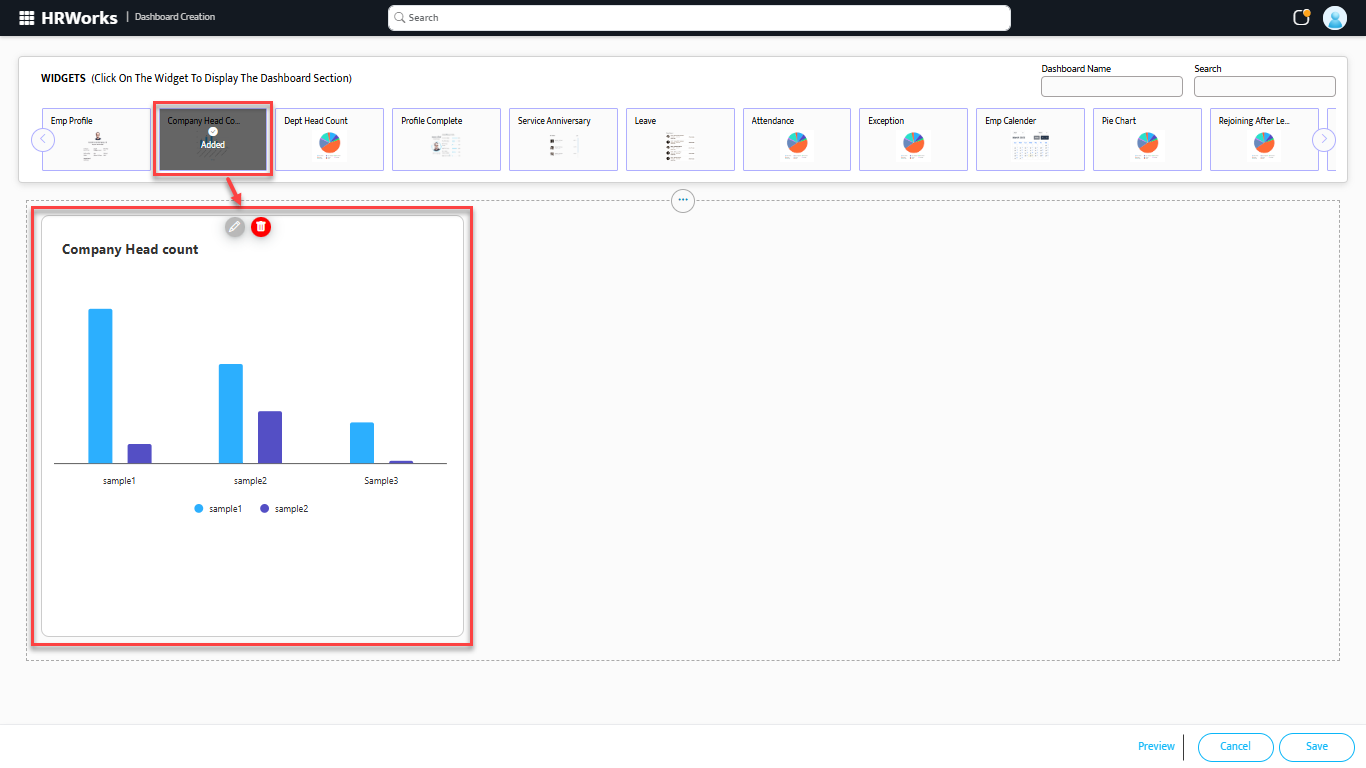
- Search: The Search option in the Widget palette helps avoid delays when searching for a specific widget among the numerous options.

- Widget Palette: You can choose your desired widget style by selecting one
-
Dashboards
HRW24 Dashboards can be customizable to individual users, the features which enables these are:
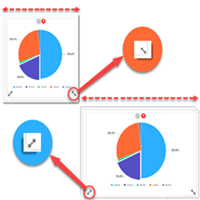
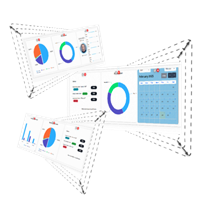
- Add as much as possible widgets: Users can add any number of widgets to their dashboards, the scalability of widgets size and auto arrangement features are enables this feature. The widgets can stretch in or out by using the anchor points on each corner.
How to resize? Use the equilateral arrows in the four corners to adjust the size of the widget. Using this you can make the widget to bigger or smaller as whatever extend you want within the dashboard.
Auto adjusting borders: When you resize the widgets and if its crossing the dashboard border, it will auto adjust to accommodate the resized widget.
Place the widgets where ever you want: Move the widgets to other parts of the dashboard and if you move beyond the dashboard outline, the borders will auto adjust to accommodate the widget as mentioned above in case of resize.
Resizable Widgets:
Users can freely adjust the height and width of individual widgets to suit their layout preferences and screen space.
Multiple Widgets Support:
The dashboard allows the addition of multiple widgets, enabling users to view a variety of data points and tools in one place.
Widget-Level Editing:
Each widget comes with an edit option that lets users configure content, data sources, filters, and display styles based on their needs.

Detailed list of features are given below
Users can add any number of widgets to their dashboards, the scalability of widgets size and auto arrangement features are enables this feature. The widgets can stretch in or out by using the anchor points on each corner.